
Zone Overview
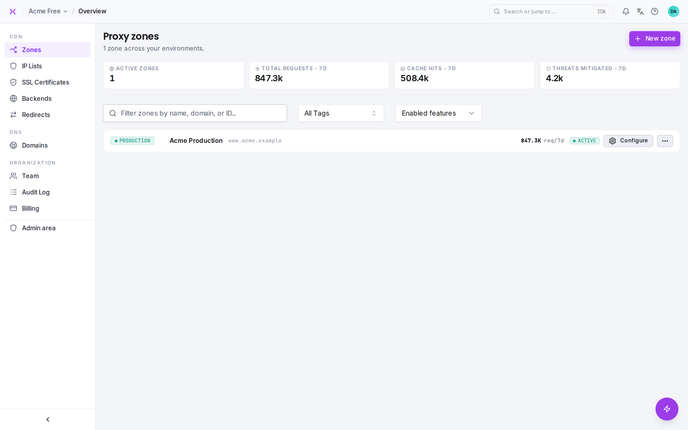
The Zones page in smoxy provides a central place to manage and monitor the configuration, performance, and status of your zones. Each zone groups a set of hostnames under a unified set of proxy, caching, optimization, and security settings. This page lets you view all your configured zones and jump into any of them.
Viewing and Managing Zones
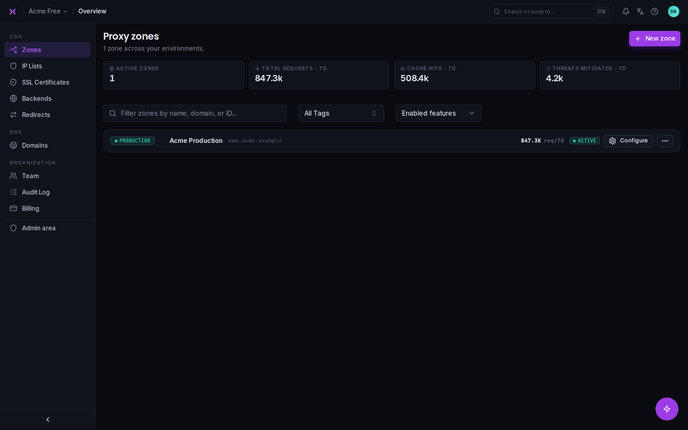
The Zones page lists every zone you've set up in smoxy. Summary metrics at the top give you an at-a-glance view across all zones:
- Active Zones: How many of your zones are currently enabled.
- Total Requests: Requests handled across your zones over the past 7 days.
- Cache Hits: Cache hits for images and HTML over the past 7 days.
- Threats Mitigated: Requests blocked by security over the past 7 days.
For each zone in the list you'll see key information such as:
- Name: The name of the zone.
- Tag: A label - Production, Staging, or Development - to help categorize your environments.
- Total Requests and Cache Hits: Per-zone traffic and caching effectiveness over the past week.
Use the search box to filter zones by name, hostname, or ID, and the tag filter to narrow the list to a single environment.
Creating and Duplicating Zones
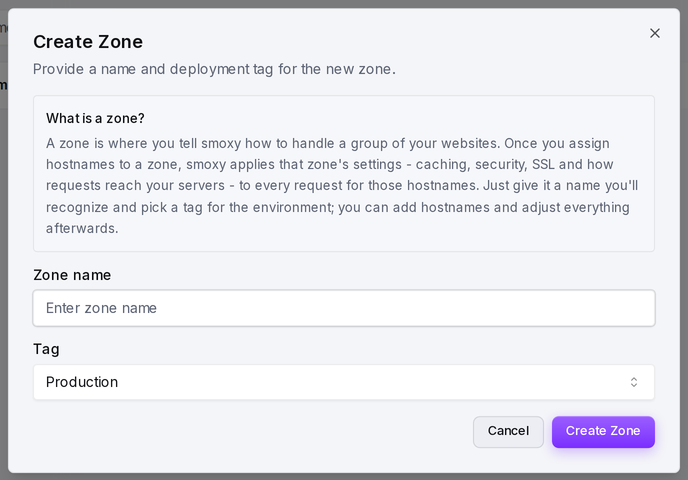
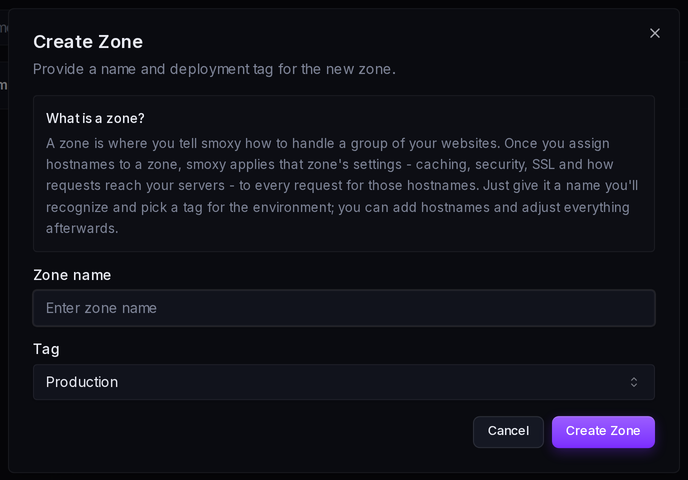
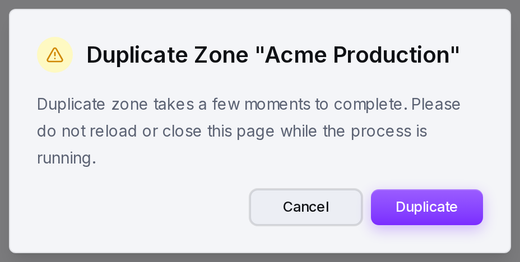
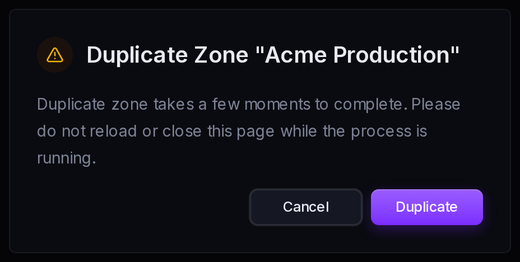
Create a new zone with New zone. To reuse an existing configuration as a starting point, use Duplicate on a zone - smoxy copies its settings into a new zone, which takes a few moments to complete.
Opening a Zone
Selecting a zone opens its dedicated settings area, with a sidebar for everything that applies to that zone - Dashboard, Hostnames, Proxy, Cache, Optimization, Custom Pages, Rules, and the Security tools. The Dashboard provides in-depth information on traffic, cache efficiency, and threats, giving you a clearer understanding of how the zone is handling traffic and where improvements can be made.
Enabling and Disabling a Zone
A zone can be enabled or disabled. Disabling a zone turns off caching, image optimization, and bot/threat protection for every hostname in it - traffic still passes through, and rules and Basic Auth continue to apply. You can re-enable a zone at any time.
Managing Hostnames
The hostnames served by a zone are managed on the zone's Hostnames page, where you can add hostnames, point their CNAME at smoxy, enable or disable CDN per hostname, move a hostname to a different zone, or convert it to a redirect.