
Security & WAF
smoxy includes a built-in Web Application Firewall (WAF) and security layer that protects your zones from malicious traffic. The security module operates at the proxy layer and works independently of CDN -- you do not need CDN enabled to use security features. Security screening happens before caching and origin fetching — see the Request Lifecycle for where it sits in the request flow.
Overview
smoxy's security system provides multiple layers of protection:
| Layer | Description |
|---|---|
| WAF | Automatically detects and blocks malicious requests |
| Managed Scenarios | Curated detection scenarios smoxy maintains and updates for you |
| WAF Rules | Your own rules: inspect any part of a request and block, challenge, throttle, or score it |
| Access Rules | Custom rules you define to allow, block, or challenge traffic based on conditions |
| Basic Auth | Password-protect your zone or specific pages with HTTP Basic Authentication |
| Under Attack Mode | Emergency mode that adds additional protection during active attacks |
Enabling Security
Security is configured per zone and requires the proxy feature to be active.
- Navigate to your Zone in smoxy
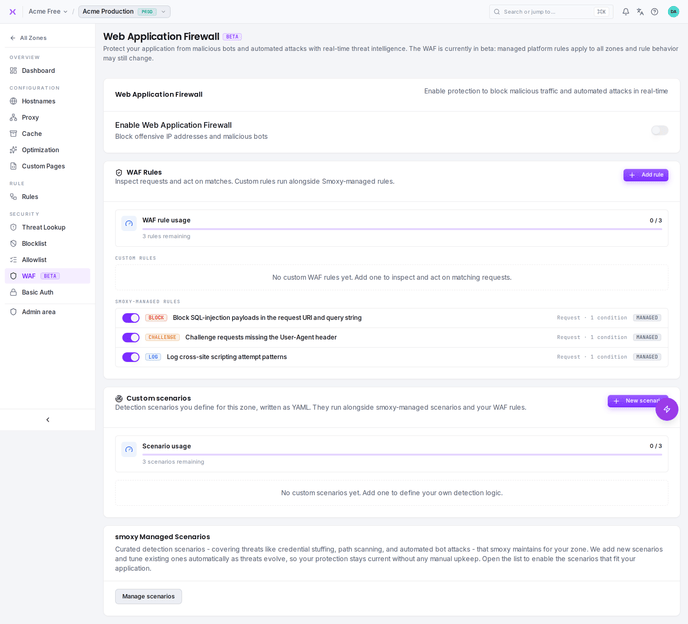
- Open the WAF settings
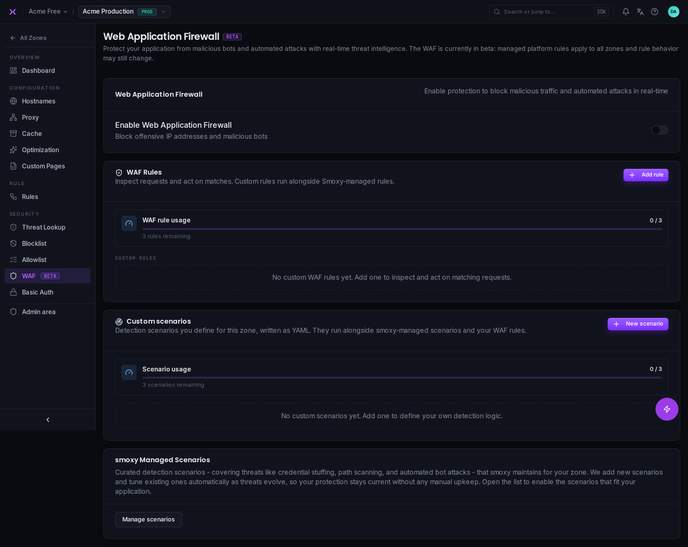
- Toggle Web Application Firewall on
- Save
INFO
Note: Security requires the proxy to be enabled on your zone. If the proxy is disabled, security is automatically disabled as well.
WAF (Web Application Firewall)
When security is enabled, smoxy's WAF automatically inspects incoming requests and blocks those that match known malicious patterns.
The WAF is designed to be safe to activate for all zones. It targets clearly malicious traffic without impacting legitimate visitors. You do not need to configure or tune individual WAF rules -- smoxy manages the ruleset automatically.
What the WAF Protects Against
The WAF provides protection against common web attacks and malicious request patterns. The specific rules are managed by smoxy and updated continuously to respond to evolving threats.
Custom Security Page
When the WAF blocks a request, the visitor typically sees a 403 Forbidden response. You can customize this page to match your branding. See Custom Pages for details on uploading a custom security page.
WAF Rules
Alongside the managed ruleset, the zone's WAF page carries a WAF Rules card where you write your own rules. A rule inspects any part of the request -- URI, query parameters, headers, cookies, the request body, the client IP, its country or network -- and blocks, challenges, throttles, skips, or scores the matches. The card also lists smoxy's platform-managed rules, each with a per-zone on/off switch.
For the complete guide -- every target, transform, operator and action, the evaluation order, and worked examples -- see WAF Rules.
Managed Security Scenarios
In addition to the WAF, smoxy maintains a curated set of security scenarios -- detection rules that watch live traffic for specific attack behavior. smoxy adds new scenarios and tunes existing ones automatically as threats evolve, so your protection stays current without any manual upkeep.
What Scenarios Detect
Scenarios target clearly malicious behavior such as credential stuffing, path and vulnerability scanning, and automated bot attacks. Each scenario is written and maintained by smoxy -- you don't author or configure them.
On by Default
Most managed scenarios are enabled by default, though some are opt-in. You only need to do something if you want to change one.
Viewing Your Scenarios
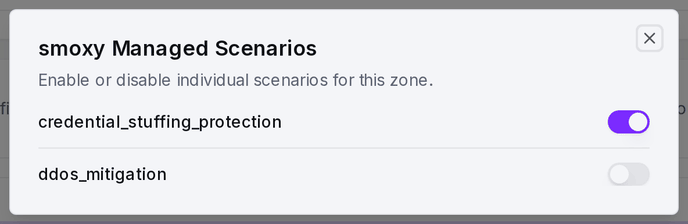
On the zone's WAF page, the smoxy Managed Scenarios card lists the scenarios protecting your zone. Click Manage scenarios to open the list -- each entry shows the scenario's name, a short description, and an on/off toggle reflecting its current state for this zone.
Opting Out of a Scenario
Turn a scenario's toggle off to disable it for this zone, or back on to re-enable it. Changes apply per zone and take effect automatically at the edge shortly after.
When to Opt Out
Most zones should leave all scenarios on. Consider opting out only if a specific scenario causes false positives for your application -- and keep in mind that disabling a scenario reduces protection. If you're unsure, contact support before opting out.
INFO
Note: Scenario opt-outs are independent per zone and do not affect the main WAF toggle. Disabling a scenario does not turn off the WAF, and vice versa.
Relationship to WAF and Access Rules
Managed scenarios are an additional, smoxy-maintained detection layer that works alongside the WAF. Access Rules remain your own tool for allowing, blocking, or challenging traffic based on conditions you define.
Verified Search Engine Crawlers
smoxy treats the major search engine crawlers separately from ordinary traffic. When a request's user agent claims to be Googlebot or Bingbot, smoxy checks the source address against a continuously synced list of the crawler operators' own networks:
- Verified -- the address really belongs to that crawler. The request skips access rules, the managed scenarios, Under Attack Mode, and the WAF, so legitimate crawling is never mistaken for automated abuse and your search visibility does not suffer from a false positive.
- Forged -- the user agent claims a crawler but the address does not belong to one. The request is blocked. Posing as a search engine is a common tactic for scrapers and vulnerability scanners, so the claim alone earns no trust.
Verification does not extend to Basic Auth. A password-protected zone answers 401 to a verified crawler too, so content behind a password is never indexed just because the source address is trusted.
This runs automatically on every zone and needs no configuration.
Access Rules
Access rules give you fine-grained control over which traffic is allowed, blocked, or challenged. You can create rules that match on request properties like IP address, country, user agent, URL path, and more -- then choose to allow, block, challenge, or skip security checks for matching traffic.
Access rules are evaluated after the zone and global IP lists but before the scenario and WAF checks — see the Request Lifecycle for the exact order. This makes them ideal for custom allow/deny policy on top of the trust lists.
For the complete guide on creating and managing access rules -- including all available conditions, operators, and detailed examples -- see Access Rules.
Basic Auth
Basic Auth adds HTTP Basic Authentication to your zone, requiring visitors to enter a username and password before accessing content. This is useful for protecting staging environments, internal tools, or restricting access during development.
Managing Users
Basic Auth users are managed per zone. Each user has a username, password, and optional comment.
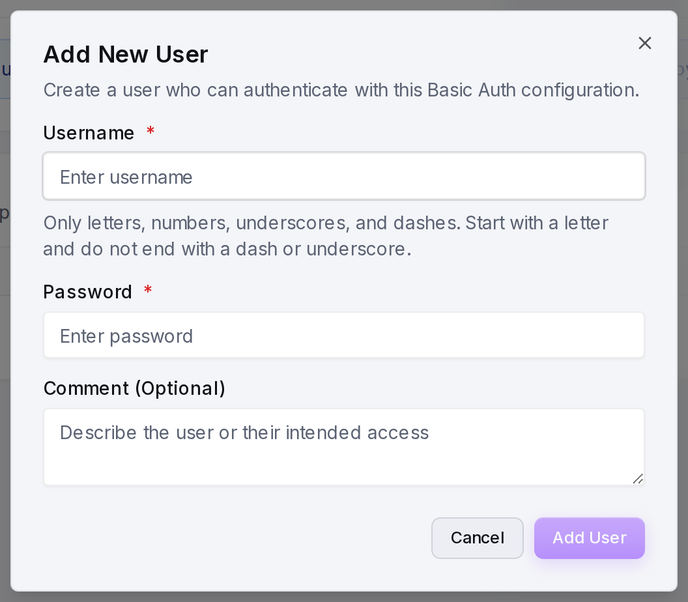
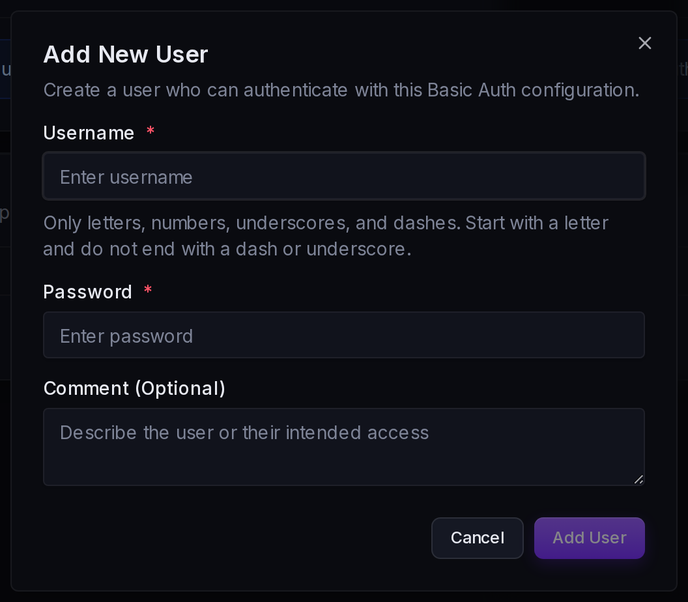
Username rules: Must start with a letter, contain only alphanumeric characters, hyphens, and underscores, and not end with a hyphen or underscore.
Password rules: Minimum 8 characters.
Enabling Basic Auth
On the zone's Basic Auth page, toggle Enable protection on. Once enabled, visitors must authenticate with one of the credentials in the Authorized Users list before they can access the zone. Allowlists grant no exemption: neither your zone allowlist nor smoxy's global allowlist bypasses Basic Auth, so a trusted IP without valid credentials still receives a 401. To let specific addresses through without a password, use a per-rule override that references an IP list (see below).
Per-Rule Overrides
For finer control, Conditional Rules include a Basic Auth setting that overrides Basic Auth for requests that match the rule. It offers three modes:
| Mode | Description |
|---|---|
| Disabled | No authentication required for matching requests |
| All Users | Any authorized user can access matching requests |
| Specific Users | Only selected authorized users can access matching requests |
This lets you:
- Protect only specific URL paths (e.g.,
/admin) - Require authentication only from certain IP ranges
- Bypass authentication for trusted IPs while requiring it for everyone else
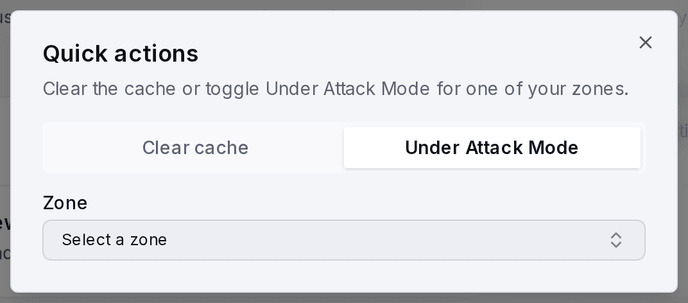
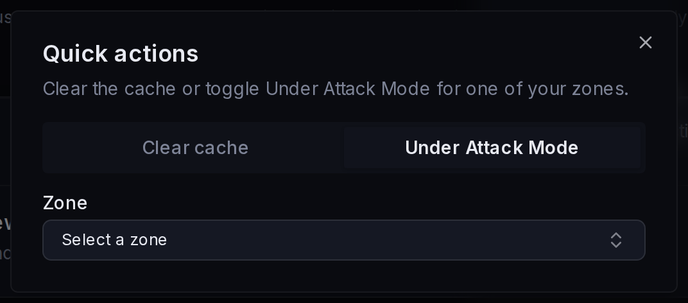
Under Attack Mode
Under Attack Mode is an emergency setting for when your zone is experiencing an active DDoS attack or unusually high volumes of malicious traffic.
When enabled, smoxy applies more aggressive security checks to all incoming requests. This may cause a brief delay for legitimate visitors as they pass through additional verification, but it significantly reduces the impact of attack traffic.
When to Use
- Your zone is experiencing a DDoS attack
- You see a sudden spike in blocked or challenged requests
- Your origin server is under heavy load from malicious traffic
When to Disable
Turn off Under Attack Mode once the attack subsides. The additional verification adds slight latency for all visitors, so it should only be active during incidents.
Important Considerations
- Safe to activate: The WAF is designed for broad activation. It targets malicious patterns without affecting legitimate traffic, making it safe to enable for all zones.
- Proxy required: Security features require the proxy to be enabled. Without the proxy, security is automatically disabled.
- CDN not required: Security operates at the proxy layer and works independently of CDN. You can use security features without enabling CDN on your hostnames.
- Rule order matters: Access rules are processed in order. Place your most specific rules first and use the stop flag to prevent unnecessary rule evaluation.
- Skip rules for APIs: If you have API endpoints that handle unusual payloads (code snippets, binary data), consider adding skip rules to prevent false positive WAF blocks.
- Under Attack Mode is temporary: Only enable Under Attack Mode during active attacks. Disable it when the situation normalizes to avoid unnecessary latency for legitimate visitors.
- Custom pages: You can customize the 403 (security block) page to match your branding. See Custom Pages.