
Two-Factor Authentication (2FA)
Two-factor authentication adds a second layer of security to your smoxy account: in addition to your password, signing in requires a time-based one-time code (TOTP) from an authenticator app. Every user can enable 2FA for their own account, and organization owners can enforce it for all members.
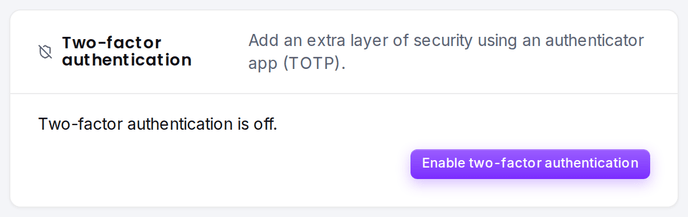
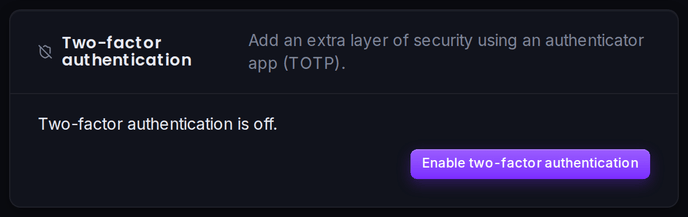
Enabling 2FA for Your Account
- Open the Account page and find the Two-factor authentication card
- Click Enable two-factor authentication
- Scan the QR code with an authenticator app -- Google Authenticator, Authy, 1Password, or any TOTP app. Alternatively, enter the displayed key manually
- Enter the 6-digit code from the app and click Confirm
2FA is now active: the next sign-in asks for a code from the authenticator app after the password.
Recovery Codes
After enabling 2FA, smoxy shows a set of recovery codes -- store them somewhere safe (e.g. a password manager). Each code works exactly once and serves as a fallback when the authenticator app is unavailable. They are only shown at this moment and cannot be viewed again later.
New codes can be generated at any time via Regenerate recovery codes on the Account page; this invalidates the previous set.
Disabling 2FA
2FA can be turned off from the same card via Disable -- confirming requires a current code from the authenticator app.
INFO
If an organization you belong to requires 2FA, it cannot be disabled. The card shows: "An organization you belong to requires 2FA, so it can't be disabled."
Organization-wide Enforcement
Organization owners can require 2FA for the whole team: on the Team page under Security, the Require 2FA for all members toggle enforces it. Members who don't yet have 2FA are prompted to set it up on their next sign-in and are blocked until they do.