
Custom Pages
smoxy allows you to replace the default error, security, and maintenance pages with your own custom HTML pages. This gives you full control over what your visitors see during outages, security blocks, or scheduled maintenance.
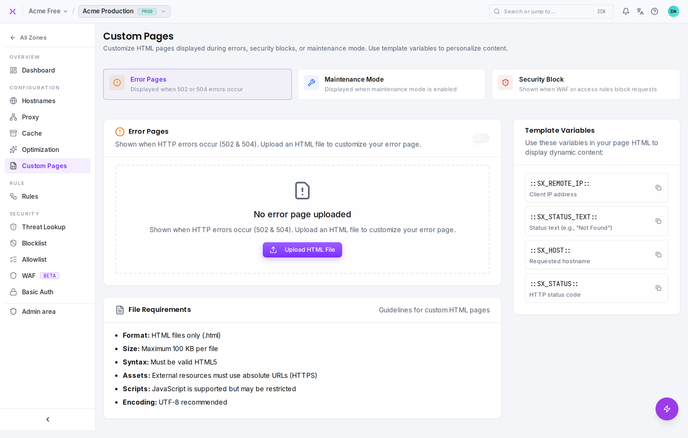
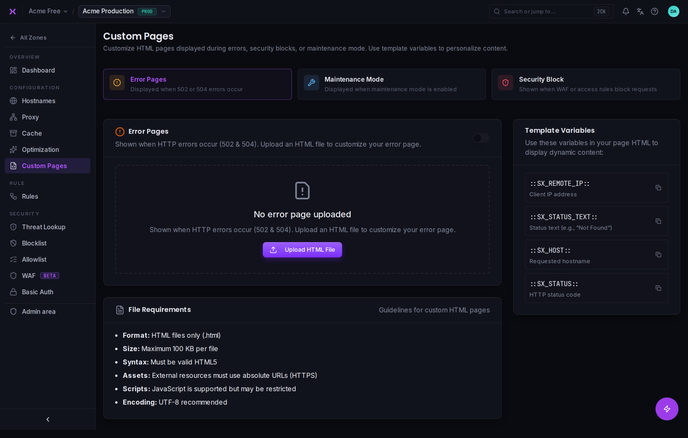
Page Types
smoxy supports three custom page types, each triggered by different scenarios:
| Page Type | Triggered When | HTTP Status Codes |
|---|---|---|
| Error Page | Your origin server is unreachable or times out | 502 (Bad Gateway), 504 (Gateway Timeout) |
| Security Page | A request is blocked by WAF or security rules | 403 (Forbidden) |
| Maintenance Page | You enable maintenance mode for your zone | 503 (Service Unavailable) |
Each page type can be enabled independently -- you can use a custom error page without customizing your security or maintenance pages.
Template Variables
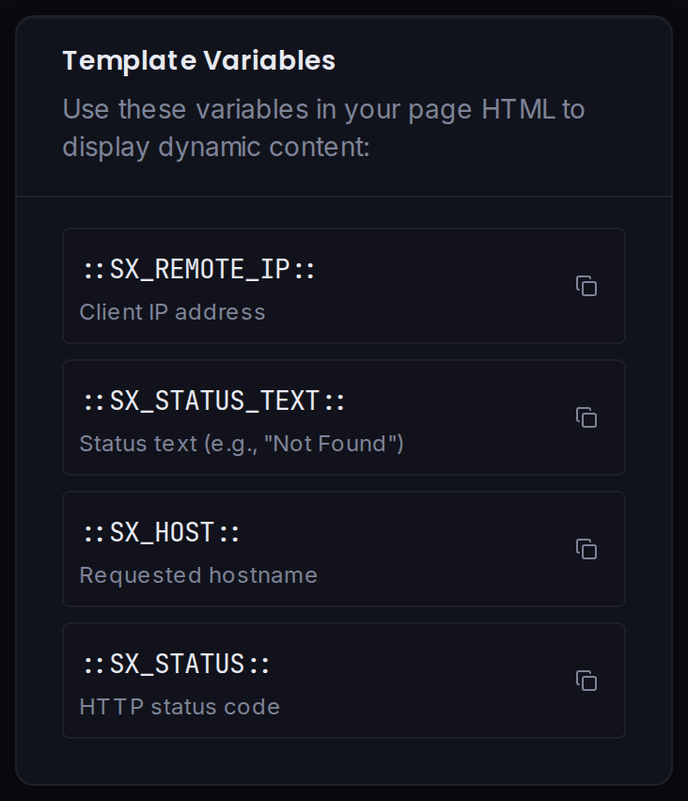
Custom pages support dynamic template variables that smoxy replaces with real values when the page is served. Use these to display contextual information to your visitors.
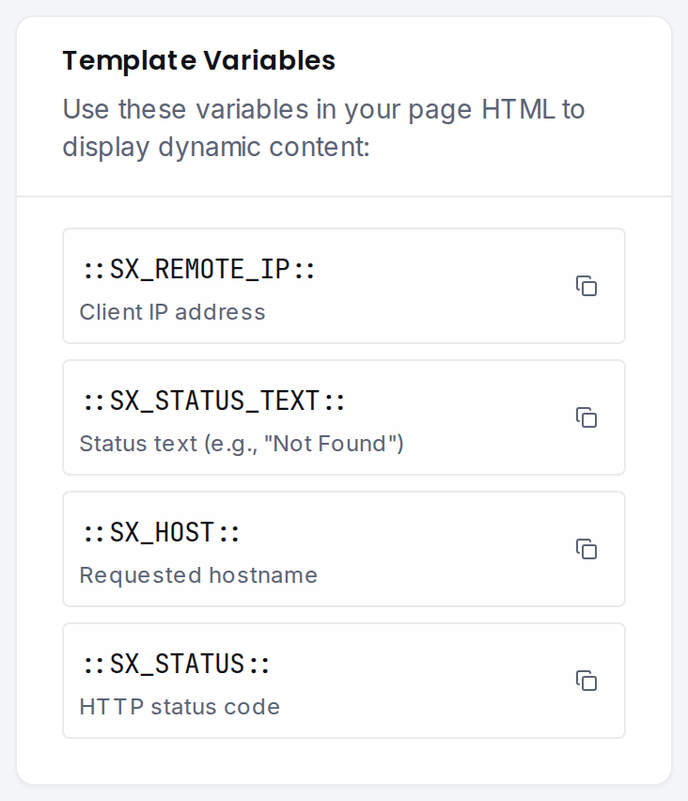
| Variable | Description | Available In |
|---|---|---|
::SX_STATUS:: | The HTTP status code (e.g., 502, 403) | Error, Security |
::SX_STATUS_TEXT:: | Human-readable status text (e.g., Bad Gateway, Forbidden) | Error, Security |
::SX_HOST:: | The hostname that received the request | Error, Security |
::SX_REMOTE_IP:: | The visitor's IP address | Error, Security |
INFO
Note: Maintenance pages do not support template variables. The maintenance page is served as static content.
Example Usage
<!DOCTYPE html>
<html>
<head>
    <title>Error ::SX_STATUS:: - ::SX_HOST::</title>
</head>
<body>
    <h1>::SX_STATUS:: ::SX_STATUS_TEXT::</h1>
    <p>Sorry, something went wrong while loading <strong>::SX_HOST::</strong>.</p>
    <p>IP address: ::SX_REMOTE_IP::</p>
    <p>If this problem persists, please contact our support team.</p>
</body>
</html>
Requirements
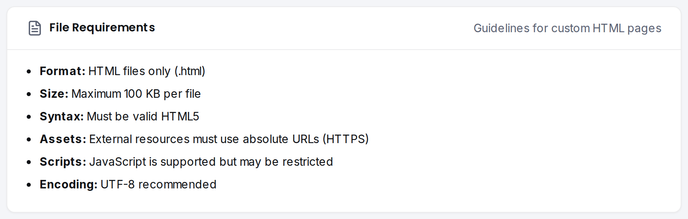
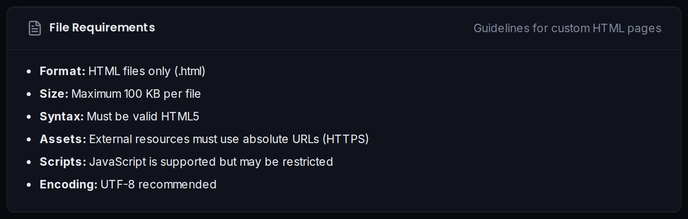
| Requirement | Details |
|---|---|
| Format | HTML only (.html) |
| Size | Maximum 100 KB per file |
| Syntax | Must be valid HTML5 |
| Assets | External resources must use absolute HTTPS URLs |
| Scripts | JavaScript is supported but may be restricted |
| Encoding | UTF-8 |
Other file types (images, PDFs, scripts) are not accepted. Keep your HTML page self-contained and lightweight, and reference any external assets via absolute HTTPS URLs.
Uploading a Custom Page
- Navigate to your Zone in smoxy
- Open the Proxy page
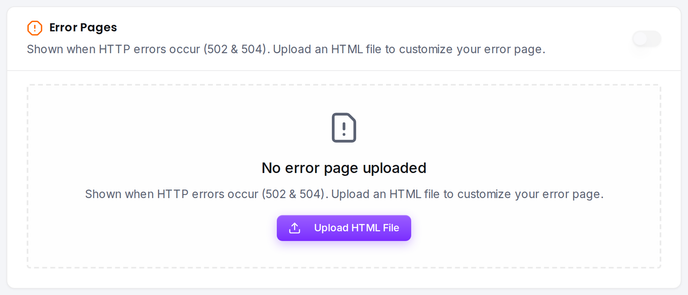
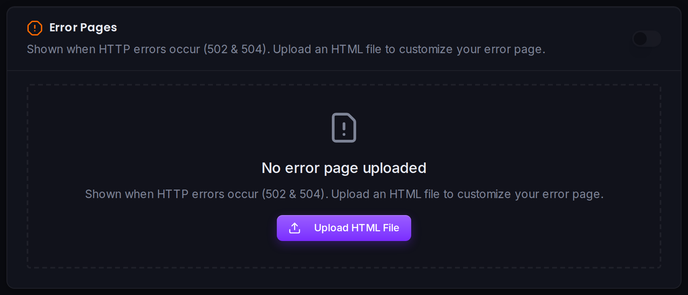
- Scroll to the relevant section (Custom Error Page, Custom Security Page, or Maintenance Mode)
- Toggle the feature on
- Upload your HTML file
- Save the configuration
After uploading, a live preview of your page appears in the configuration panel. You can click the preview to open it in a new tab.
Page Type Details
Error Page
The error page is shown when smoxy cannot reach your origin server or the origin takes too long to respond.
When it appears:
- 502 Bad Gateway -- Your origin returned an invalid response, is offline, or no origin of the load balancer could be reached
- 503 Service Unavailable -- The zone has no origin to contact: none is configured, or none of the configured origins is usable
- 504 Gateway Timeout -- Your origin did not respond in time
Template variables: All 4 variables are available (::SX_STATUS::, ::SX_STATUS_TEXT::, ::SX_HOST::, ::SX_REMOTE_IP::)
Tip: Use ::SX_STATUS:: to differentiate between the error causes in a single page, for example to show different troubleshooting advice.
INFO
A 503 returned by your origin itself passes through unchanged -- no custom page replaces it. The maintenance page is never served for backend failures; it appears only while maintenance mode is explicitly enabled.
Security Page
The security page is shown when a request is blocked by smoxy's security rules or WAF.
When it appears:
- 403 Forbidden -- The request was blocked by an access rule or WAF
Template variables: All 4 variables are available
Prerequisite: The security feature must be enabled on your zone for security blocks to occur. See Security & WAF for details.
Maintenance Page
The maintenance page is shown when you enable maintenance mode for your zone. This is useful for planned downtime or deployments.
When it appears:
- 503 Service Unavailable -- Maintenance mode is active
Template variables: None -- the maintenance page is served as static HTML without variable substitution.
Tip: Since maintenance pages don't support template variables, include all necessary information directly in the HTML.
Preview
After uploading a custom page, smoxy provides an interactive preview with a toolbar that lets you test how your page looks with different values:
- Status code -- Select different status codes to see how your template variables render
- Hostname -- Enter a hostname to test
::SX_HOST::substitution - Remote IP -- Enter an IP to test
::SX_REMOTE_IP::substitution
The preview updates in real time as you change the toolbar values.
Important Considerations
- Keep pages self-contained and lightweight: Resources hosted on your own servers may not load if your origin is down. Any external assets you do reference must use absolute HTTPS URLs.
- File size limit: Keep your pages under 100 KB. This limit ensures fast delivery even under high load.
- JavaScript may be restricted: JavaScript is supported but may be restricted, and external scripts won't load if your origin or CDN is down. Don't rely on it for critical content.
- Test with the preview: Always use the preview feature to verify your template variables render correctly before going live.
- One page per type: Each zone has one custom page per type. You cannot configure different pages for different hostnames on the same zone.