
Optimization
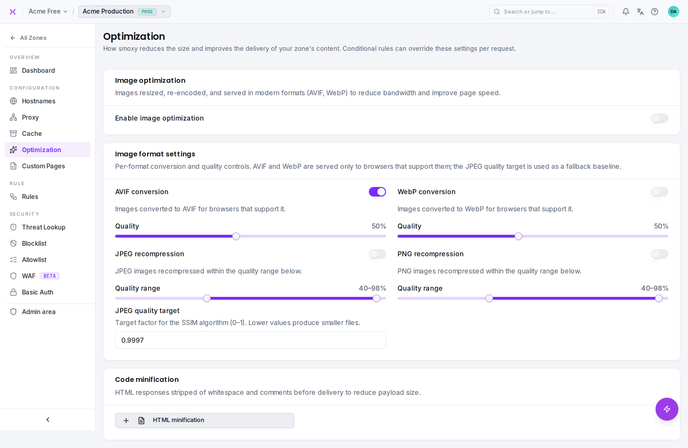
smoxy automatically optimizes images served through your zone -- reducing file sizes without visible quality loss and converting images to modern formats like WebP and AVIF. This improves page load times and reduces bandwidth usage.
How It Works
When image optimization is enabled:
- A visitor requests an image (e.g.,
product.jpg) - smoxy fetches the image from your origin
- smoxy optimizes the image and optionally converts it to WebP or AVIF
- The optimized image is cached and served to the visitor
- The original URL does not change -- format negotiation happens automatically via the
Acceptheader
Supported input formats: JPEG, PNG
Supported output formats: JPEG, PNG, WebP, AVIF
Enabling Optimization
- Navigate to your Zone in smoxy
- Open the Optimization page
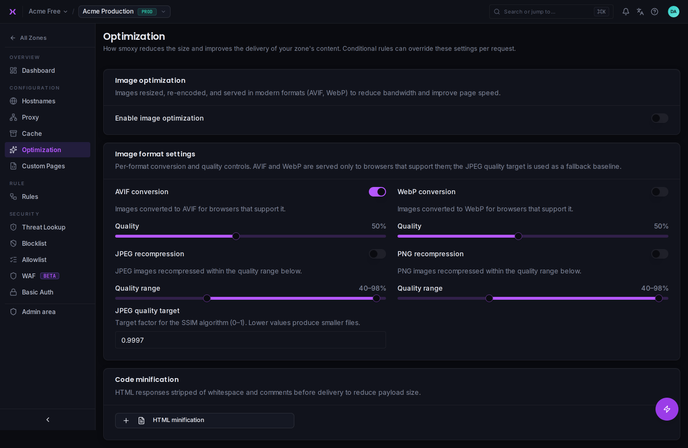
- Toggle Enable image optimization on
- Configure quality and format settings
- Save
Format Conversion
Convert to WebP
When enabled, smoxy converts JPEG and PNG images to WebP format for browsers that support it. WebP typically achieves 25--35% smaller file sizes compared to JPEG at the same visual quality.
| Setting | Default |
|---|---|
convert_to_webp | Enabled |
webp_quality | 50 |
Browsers that do not support WebP receive the optimized original format (JPEG or PNG).
Convert to AVIF
When enabled, smoxy converts JPEG and PNG images to AVIF format for browsers that support it. AVIF typically achieves even better compression than WebP.
| Setting | Default |
|---|---|
convert_to_avif | Enabled |
avif_quality | 50 |
Browsers that do not support AVIF fall back to WebP (if enabled), or the optimized original format.
INFO
Note: Some services like Google Merchant Center do not accept AVIF images. If you use Google Merchant feeds, see Google Merchant Crawler for details.
Quality Settings
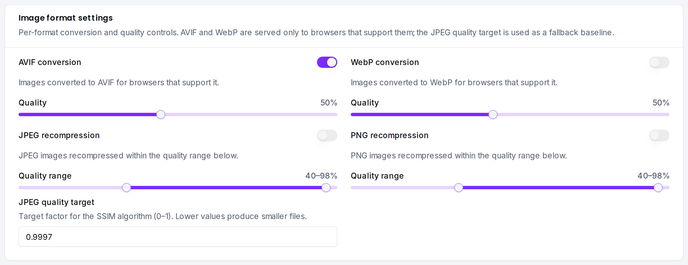
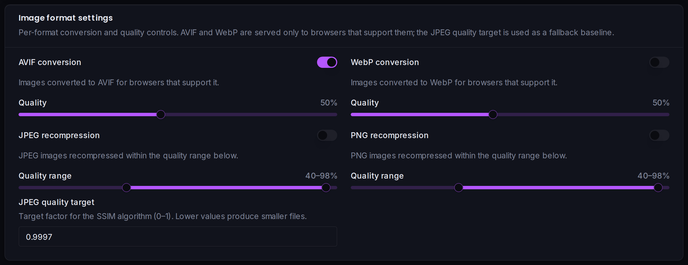
Image optimization uses a quality range (min/max) to find the best balance between file size and visual quality. smoxy uses the SSIM (Structural Similarity Index) method to ensure compressed images remain visually identical to the originals.
INFO
Rollout in progress: The JPEG and PNG quality controls (min/max quality and the per-format enable toggles) are currently being rolled out and may not yet be visible on every zone.
JPEG
| Setting | Range | Default | Description |
|---|---|---|---|
jpeg_quality_min | 10--100 | 40 | Minimum acceptable quality (lower bound) |
jpeg_quality_max | 10--100 | 98 | Maximum quality (upper bound) |
jpeg_quality_target | 0.0001--0.9999 | 0.9997 | SSIM target -- higher means closer to the original |
The SSIM target controls how aggressively smoxy compresses. The default of 0.9997 is very conservative -- nearly indistinguishable from the original. Lower the target for smaller files at the cost of slightly reduced quality.
PNG
| Setting | Range | Default | Description |
|---|---|---|---|
png_quality_min | 10--100 | 40 | Minimum acceptable quality |
png_quality_max | 10--100 | 98 | Maximum quality |
WebP
| Setting | Range | Default | Description |
|---|---|---|---|
webp_quality | 10--100 | 50 | Output quality for WebP conversion |
AVIF
| Setting | Range | Default | Description |
|---|---|---|---|
avif_quality | 10--100 | 50 | Output quality for AVIF conversion |
Code Minification
| Setting | Default |
|---|---|
minify_html | Disabled |
When enabled, smoxy removes unnecessary whitespace, comments, and line breaks from HTML responses before they are delivered (and cached). This reduces the HTML file size sent to visitors.
Minification works independently of HTML caching (Dynamic cache) -- combining both gives the best performance improvement.


Per-Request Overrides
You can override image optimization settings for specific requests using Conditional Rules. This allows you to:
- Set different quality levels for mobile users
- Disable format conversion for specific paths
- Apply more aggressive compression for specific regions
Example: Reduce image quality for mobile visitors to save bandwidth:
| Condition | Setting | Value |
|---|---|---|
User Agent matches (Mobile|Android|iPhone) | JPEG Max Quality | 75 |
User Agent matches (Mobile|Android|iPhone) | WebP Quality | 65 |
Important Considerations
- Automatic format negotiation: smoxy checks the visitor's
Acceptheader to determine which formats the browser supports. The URL stays the same -- only the response format changes. - Cached per format: Optimized images are cached separately for each output format. A JPEG, WebP, and AVIF version of the same image can coexist in the cache.
- Only JPEG and PNG inputs: smoxy optimizes JPEG and PNG images. Other formats (GIF, SVG, etc.) are passed through without modification.
- Lossless is not supported: Image optimization always applies lossy compression. If you need pixel-perfect image delivery, disable optimization for those paths using a Conditional Rule.
- Cloudflare users: If you use Cloudflare in front of smoxy, disable Cloudflare's image optimization (Polish) to avoid double optimization.